 jooootv
Putting your phone on the TV: Cast, Miracast, AirPlay or a cable
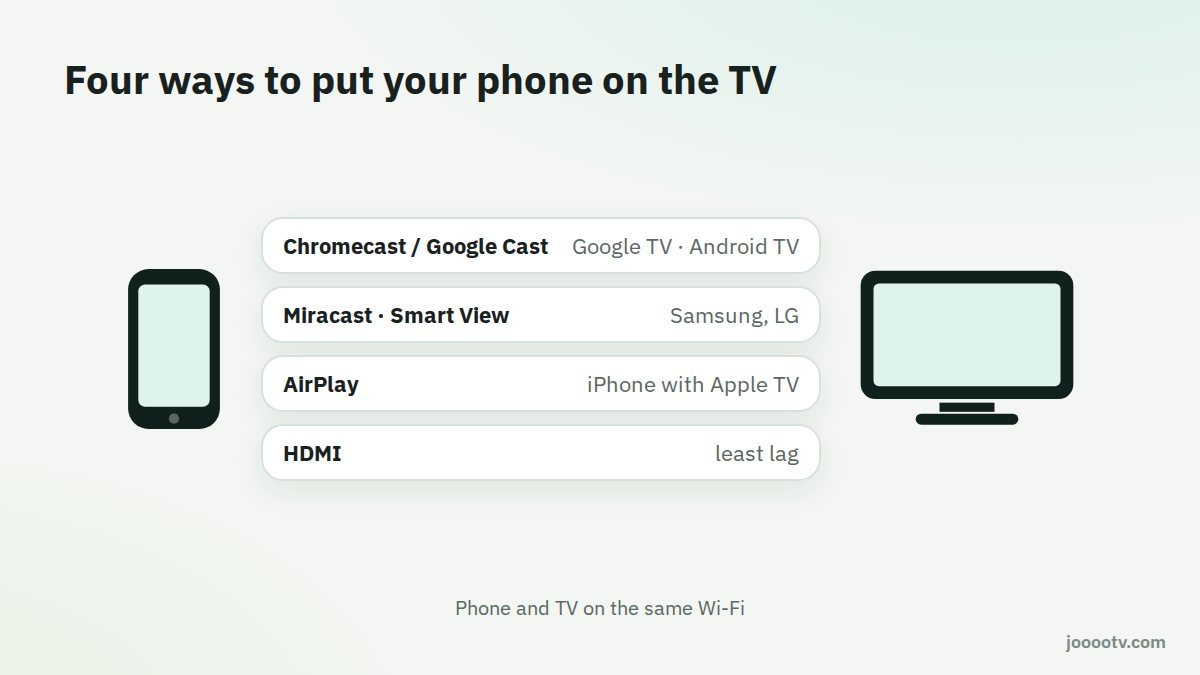
You don't always need to install anything on the TV. You can watch on your phone and send the picture to the big screen. There are four main ways to do it, and each suits a different setup.
Before anything else
For the wireless options, your phone and TV have to be on the same Wi-Fi network. That one thing causes more than half of all "my TV doesn't show up in the list" problems.
1. Chromecast / Google Cast
Built into Google TV and Android TV, and into Chromecast devices.
- On an Android phone, pull down quick settings and tap Screen cast or Cast. On Samsung it's called Smart View.
- Pick your TV from the list.
- Play the video on your phone, turn it sideways and go full screen.
2. Miracast (screen mirroring)
A wireless standard many TVs support, including Samsung, LG and TV boxes, usually labelled "Screen Mirroring". From your phone you use Smart View or Screen cast. On a Windows PC, press Win + K and pick the TV.
3. AirPlay for iPhone and iPad
- You need an Apple TV or a TV with AirPlay 2. Many recent Samsung, LG and Sony TVs have it.
- Open Control Center on the iPhone and tap Screen Mirroring.
- Pick the TV, and type in the code if one appears on screen.
4. A cable: the most stable, least lag
- Android with USB-C: you need a USB-C to HDMI adapter, but not every phone can output video through its port. Higher-end Samsung phones usually can; many budget phones can't. Check your phone's specs first.
- iPhone with Lightning: Apple's Lightning Digital AV Adapter.
- iPhone 15 and later (USB-C): a USB-C to HDMI adapter.
Which one should I use?
| Your setup | Best option |
|---|---|
| Google TV or Android TV | Cast, or just install the app on the TV |
| Samsung or LG TV with an Android phone | Smart View / Miracast |
| iPhone with Apple TV or an AirPlay TV | AirPlay |
| Weak Wi-Fi or annoying lag | Cable |
Common problems
- The TV doesn't show up: check you're on the same network and restart both. Some routers have "AP isolation" turned on, which stops devices seeing each other.
- Sound but a black picture: some players block mirroring to protect content. Try Cast instead of mirroring, or play from a different browser.
- Stutter and lag: mirroring sends your whole screen non-stop, so it's heavier than Cast. Move the phone closer to the router and use 5 GHz.
- Battery draining fast: mirroring hammers the battery. Keep the charger plugged in for long sessions.
If you watch on the TV a lot, installing the app on the TV or a TV box is much more relaxed than casting from your phone every time. See the TV guide.
Ready? This button always opens the watch site at its current address.
Open the watch site