 jooootv
Setting up a Fire TV Stick from the box to your first show
Amazon's Fire TV Stick is one of the most popular ways to make an ordinary TV smart. Setting it up is easy, but a few small steps get skipped all the time, like how you power it or turning on developer options, and then it runs worse than it should.
What's in the box
The stick itself, a remote with two batteries, a USB cable, a power adapter, and usually a short HDMI extender.
Plugging it in properly
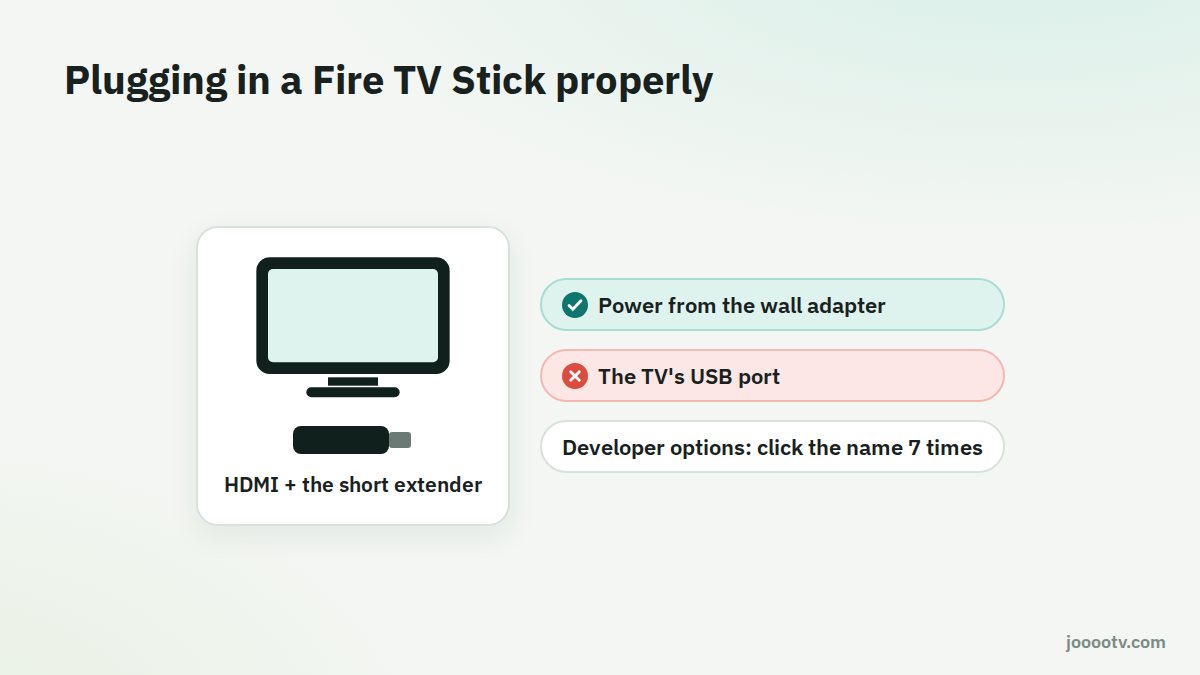
- Plug the stick into an HDMI port on the TV. If it's a tight spot or close to the wall, use the extender. It also helps the Wi-Fi, since it moves the stick away from the TV's metal body.
- Power it from the included adapter in a wall socket. Don't rely on the TV's USB port. Many don't give enough power, and you'll get "insufficient power" warnings or random restarts.
- Pick the right HDMI input with your TV remote (HDMI 1, 2 and so on).
First-time setup
- Pairing the remote: it usually pairs by itself. If not, hold the Home button for ten seconds.
- Language and Wi-Fi: choose a language, then your network and password. Go for 5 GHz if it's available and the router's nearby.
- Updates: it'll download updates first. Let it finish, even if it takes a few minutes.
- Amazon account: it asks you to sign in or create one. That's free.
- Offers and suggested apps: you can skip all of it.
Turning on developer options (to install apps from outside the store)
- In Settings, go to My Fire TV → About.
- Highlight the device name (something like Fire TV Stick 4K) and press the select button seven times until it says you're now a developer.
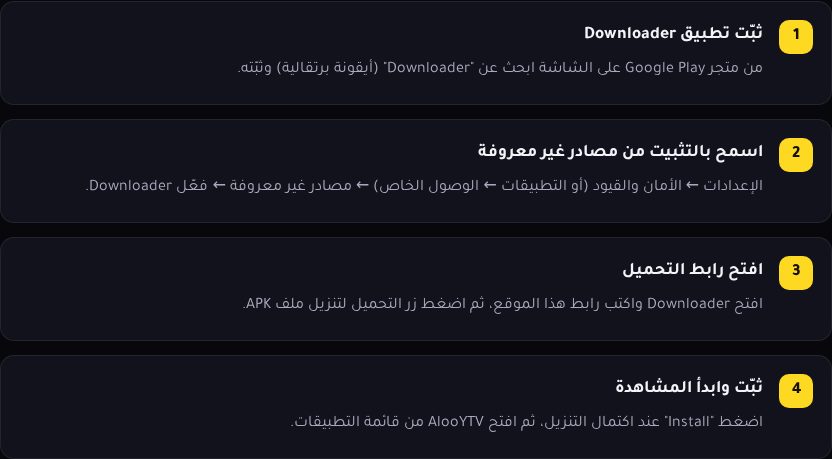
- Go back one step and you'll find Developer Options. Turn on Install unknown apps for the app you'll use, such as Downloader.
Then follow the TV install guide.
Settings that make it faster
- Stop featured content from autoplaying: Settings → Preferences → Featured Content, and switch off video and audio autoplay.
- Remove what you don't use: Settings → Applications → Manage Installed Applications.
- Quick restart: hold Select and Play/Pause together for five seconds. Useful when it freezes.
- Data monitoring: on a capped connection, Settings → Preferences → Data Monitoring lets you limit quality.
Remote stopped working after new batteries? Hold Home for ten seconds to pair it again. And if the remote goes missing, the Amazon Fire TV app on your phone works as a full remote. See using your phone as a remote.
Ready? This button always opens the watch site at its current address.
Open the watch site