 jooootv
The TV picture and sound settings that make dramas look right
Most TVs leave the factory set up to grab your attention in a showroom: loud colours, high brightness and motion that's way too smooth. A few simple changes make dramas look the way they were made to, and they're easier on your eyes during a long Ramadan evening of back-to-back episodes.
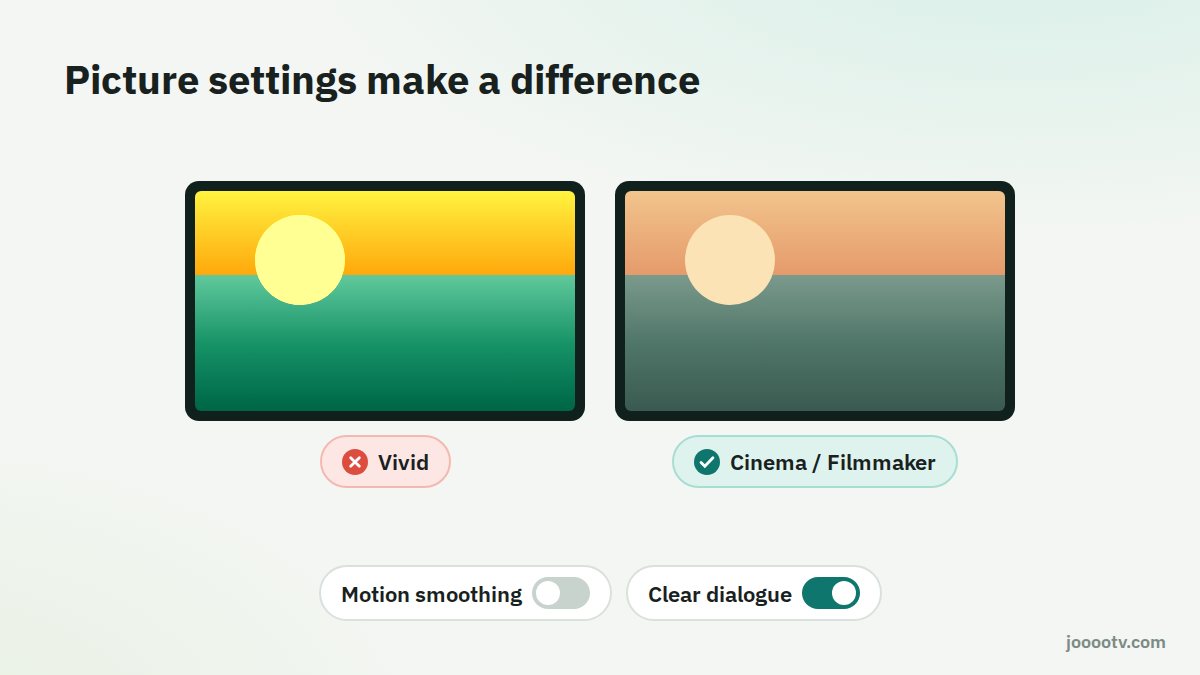
1. Pick the right picture mode
In the picture settings you'll see modes like Vivid or Dynamic, Standard, Cinema or Movie, and sometimes Filmmaker Mode.
- For series and films: go with Cinema or Filmmaker Mode. Colours are accurate and skin tones look natural.
- For a very bright room in the daytime: Standard may work better since it's brighter.
- Avoid Vivid: it cranks up saturation and sharpness and tires your eyes out fast.
2. Turn off motion smoothing
This feature invents extra frames between the real ones, so dramas end up looking like they were shot on a home camcorder. People call it the "soap opera effect". The setting has a different name depending on the brand:
- Samsung: Auto Motion Plus or Picture Clarity.
- LG: TruMotion.
- Sony: Motionflow.
- TCL and Hisense: usually MEMC or Motion Clarity.
Switch it off or set it to the lowest level. Keep it on for football if you like it there.
3. Brightness to suit the room
- In a dark room at night: lower the backlight. A very bright picture in the dark strains your eyes.
- Energy saving mode: it dims and adjusts brightness on its own, and can turn dark scenes into murk. Try switching it off if the picture looks dull.
- Sharpness: keep it low. High values put halos around faces and text.
- Colour temperature: "Warm" is closer to natural colour than the bluish "Cool".
4. Sound: clear dialogue beats volume
In Arabic dramas, the dialogue is everything. If the music's loud and the talking is quiet:
- Turn on Clear Voice, dialogue enhancement or a "speech" mode if your TV has one.
- Night Mode narrows the gap between loud and quiet parts. Handy when someone's asleep.
- Thin TV speakers only go so far. Even a basic soundbar makes speech a lot clearer.
5. Picture size
If the edges of the picture look cut off, or a wide video has black bars on the sides, find "Picture size" and choose Fit to Screen or Just Scan.
Picture still stuttering after all that? It's usually the connection, not the TV. Read router setup.
Ready? This button always opens the watch site at its current address.
Open the watch site