 jooootv
Watching on a laptop or PC, and putting it on the big TV
On a computer you don't install anything: the browser is enough. Here's how to set it up properly, and how to throw the picture onto the TV when you want a bigger screen.
Which browser?
Any modern one works: Chrome, Edge or Firefox on Windows, Safari or Chrome on a Mac. What matters is that it's up to date. Old versions sometimes can't play certain video formats.
The steps
- Click the "Watch site" button at the top of this page.
- Bookmark jooootv.com (Ctrl + D on Windows, ⌘ + D on a Mac). It always gets you to the current address.
- When a video starts, click the full screen button, or press F in most players.
Ad blockers
If the player won't load or you get a black screen, try turning off your ad blocker or privacy extensions for this site only, then refresh. Some of them block the player's own files by mistake.
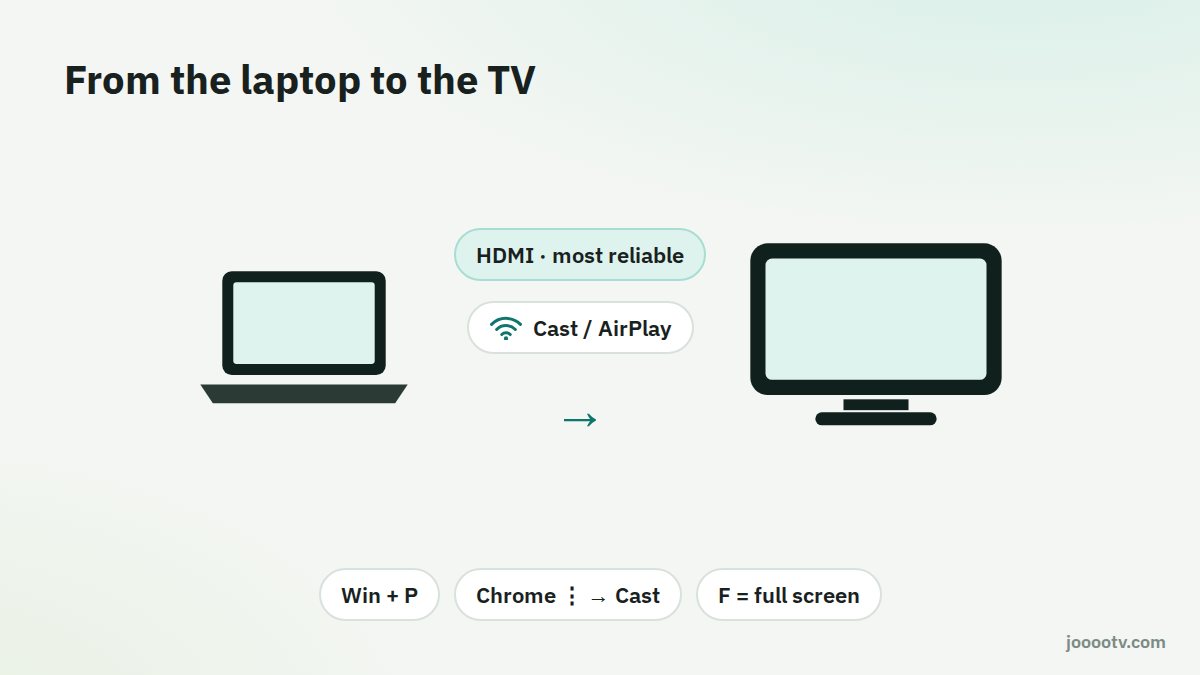
From the laptop to the TV
- HDMI cable: the simplest and most reliable. Plug it in and pick the HDMI input on your TV remote. On Windows, press Win + P and choose "Duplicate" or "Second screen only".
- Wireless: in Chrome, open the ⋮ menu → "Cast" if you have a Chromecast or a TV that supports it. On a Mac, use AirPlay with an Apple TV or a compatible TV.
Handy player shortcuts
| Key | What it does in most players |
|---|---|
| Space | Play / pause |
| F | Full screen |
| M | Mute |
| Left / right arrows | Skip back or forward a few seconds |
| Esc | Exit full screen |
Computer feeling slow?
Close tabs you're not using. Every open tab eats memory. If the browser itself has been sluggish for a while, clear the cache and restart it.
Ready? This button always opens the watch site at its current address.
Open the watch site