 jooootv
Updating the app without breaking anything
Apps installed from an APK don't update themselves through Google Play. That's why some people sit on an old version for years and then get caught out when it stops working. Here's when to update and how.
How do you know there's a new version?
- The app itself may tell you an update is available.
- The download page on the official site always lists the current version.
- Your version number is under Settings → Apps → the app, usually near the bottom.
Updating on an Android phone
- Download the new version from the official download page.
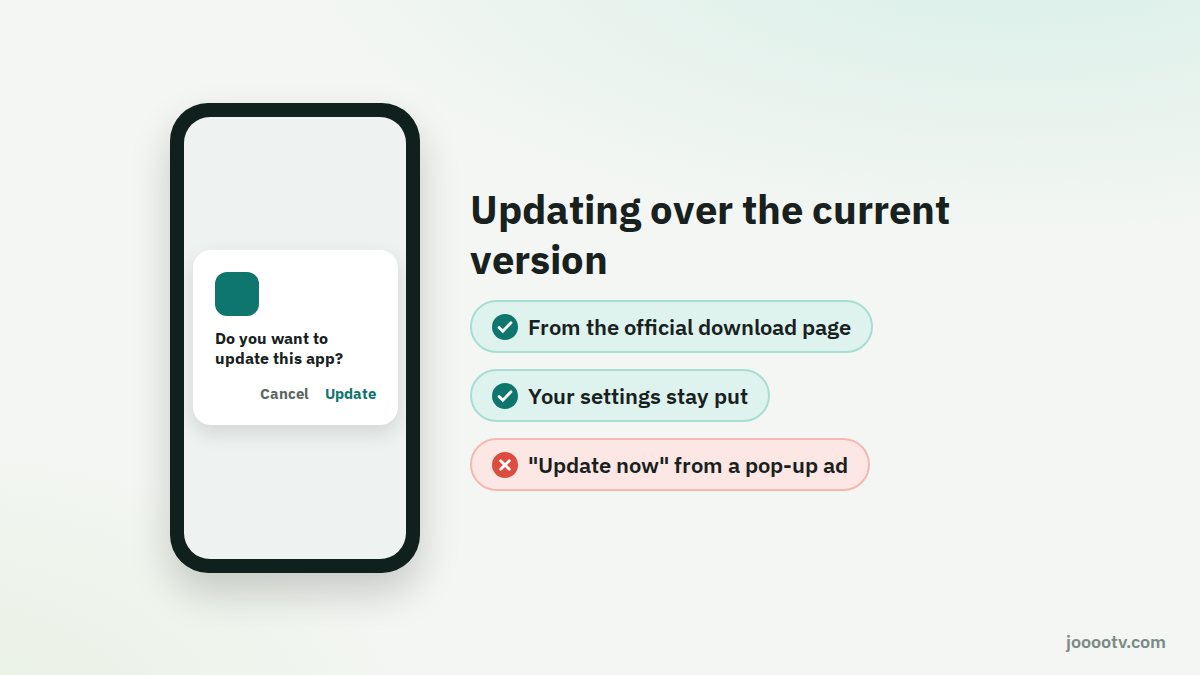
- Open the file. You'll see "Do you want to update this app?" instead of "Install".
- Tap Update. Your settings stay as they are because the new version installs over the old one.
- Once it's done, delete the APK from Downloads to save space.

On a TV, TV box or Fire TV
- Open Downloader and go to the official download page, same as the first time.
- Download the file and press Install. The new version goes over the old one.
- When asked, choose "Delete" to remove the file afterwards. These devices don't have much space.
If Android refuses the update
If you get "App not installed" when updating, your old version most likely came from a different source with a different signature: an old joootv build, or a copy from an unofficial site. The fix:
- Uninstall the version you have.
- Install the new one from the official source.
You'll lose whatever settings were saved in the old app. It's a one-time hit, and after that updates go through normally. More detail in fixing "App not installed".
On iPhone
Nothing to update. What opens from the browser or your home screen icon is always the latest version. If something looks out of date, close Safari and reopen it, or clear the site's data.
How often should I update?
No need to chase every minor version. Update when the app asks you to, when something stops playing properly, or every month or two if everything's fine.
The current version is always on the official download page.
Download page